

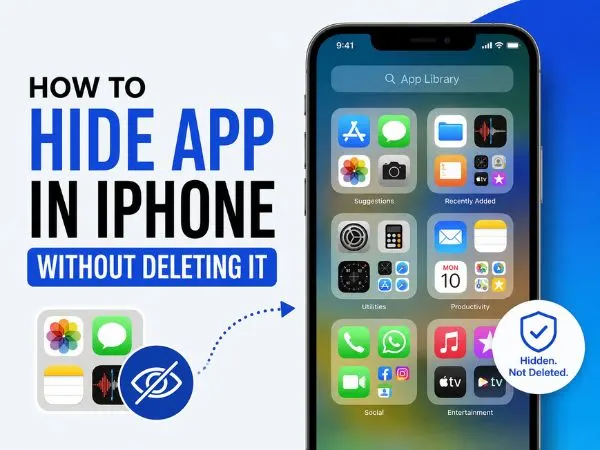
Whether you’re trying to keep your digital life priv**ate, limit screen time, or just declutter a messy interface, there are several built-in ways to hide apps on your iPhone without actually deleting them.
Since the release of iOS 18, Apple has introduced native ways to completely lock and hide apps, but there are also legacy methods that work perfectly if you just want things out of sight. Here is a breakdown of the best methods based on how much privacy you actually need:
| Method | Best For | Privacy Level |
| Lock and Hide (iOS 18+) | Total privacy for specific apps | High (Requires Face ID/Passcode) |
| Remove from Home Screen | General decluttering | Low (Still visible in App Library) |
| Hide a Full Page | Hiding multiple apps at once | Low (Still visible in App Library) |
| Remove from Search | Stopping apps from appearing in queries | Medium |
| Screen Time | Hiding built-in Apple apps (Safari, Camera) |
1. The Ultimate Privacy Method: Lock and Hide (iOS 18 and later)
If you are running modern iOS, Apple finally added a native way to lock an app behind Face ID and completely hide it from your home screen, notifications, and standard search.
1.Long-press the app:
Press and hold the app icon you want to hide until the context menu appears.
2.Select ‘Require Face ID’:
Tap the Require Face ID option (it has a small Face ID icon next to it).
3.Choose ‘Hide and Require Face ID’:
A secondary prompt will appear. Choose Hide and Require Face ID to confirm.
Where does it go? The app is moved to a locked Hidden folder at the very bottom of your App Library. You can only open this folder by authenticating with Face ID or your passcode.
also read : – Customer Premise Equipment (CPE): Meaning, Types, Uses, and Why It Matters in Modern Networks
2. Decluttering: Remove from Home Screen
If you don’t need strict security and just want an app off your main screens, you can banish it to the App Library.
1.Long-press the app icon:
Hold the app until the menu pops up.
2.Tap ‘Remove App’:
Select the option highlighted in red.
3.Select ‘Remove from Home Screen’:
Do not tap “Delete App.” Tapping Remove from Home Screen keeps the app installed but removes its icon from your visible pages.
To find the app later, swipe left past your last Home Screen page to access the App Library and use the search bar at the top.
3. Bulk Hiding: Hide an Entire Home Screen Page
If you have a group of apps (like work apps, dating apps, or games) that you want to hide all at once, you can place them all on a single Home Screen page and hide the entire page.
1.Enter Jiggle Mode:
Tap and hold any empty space on your Home Screen until the apps start jiggling.
2.Tap the page dots:
Tap the row of dots at the bottom of the screen (above the dock). This opens a zoomed-out view of all your Home Screen pages.
3.Uncheck the page:
Tap the checkmark under the page you want to hide to remove it.
4.Tap Done:
Tap Done in the top right corner. The apps on that page are still installed and accessible via the App Library, but the page itself is invisible.
4. Prevent Apps from Appearing in Search
Even if an app is removed from your Home Screen, it will still show up if someone swipes down and searches for it using Spotlight. To make an app truly discreet, you need to cut off its search access.
1.Open Settings:
Go to your iPhone’s main Settings app.
2.Find the app:
Scroll down the main settings list until you find the specific app you want to hide, and tap it.
3.Tap ‘Siri & Search’:
Open the search settings for that app.
4.Toggle everything off:
Turn off Show App in Search, Show Content in Search, and Learn from this App.
also read : – Temperature Apps For IPhone: Monitor Temperature On Your IPhone
5. Hiding Core Apple Apps via Screen Time
Apple doesn’t let you delete or use the standard “hide” features on certain core iOS apps like Safari or the Camera. To make these disappear, you have to use Screen Time restrictions.
1.Open Screen Time:
Go to Settings > Screen Time.
2.Access Content & Privacy Restrictions:
Tap Content & Privacy Restrictions and toggle it on at the top if it isn’t already.
3.Go to Allowed Apps:
Tap Allowed Apps. You may be asked to enter your Screen Time passcode.
4.Toggle apps off:
Turn off the switch next to any app you want to hide (e.g., Safari, Camera, Mail).
When toggled off here, the app completely disappears from your phone—including the App Library and search—until you go back into Settings and turn it back on.
Need to hide your App Store download history too?
While you cannot permanently delete your App Store purchase history (Apple keeps the records for billing and licensing reasons), you can easily hide any previously downloaded app from your purchase list. This is especially useful if you use Family Sharing and don’t want family members to see or re-download an app you’ve installed.
1.Open the App Store:
Launch the App Store app on your iPhone.
2.Tap your profile picture:
Tap your profile icon or picture in the top-right corner of the screen.
3.Tap ‘Apps’:
Select Apps from the menu. (Note: If you use Family Sharing, tap My Apps instead).
4.Hide the app:
Scroll down to find the app you want to hide, then swipe left on the app’s name.
5.Tap ‘Hide’:
Tap the red Hide button that appears, then tap Done in the top right.
Note: Hiding an app from this list does not delete it from your iPhone, cancel any active subscriptions associated with it, or remove the official billing receipt from your deeper Apple Account settings. It simply removes the app from the visual list of past downloads.
If you ever need to see your hidden apps again, go back to your App Store profile, tap your name/Apple Account at the very top, authenticate with Face ID or your passcode, and scroll down to Hidden Purchases.
Conclusion
Hiding apps on your iPhone is no longer a clumsy workaround. Whether you want to temporarily declutter your Home Screen or permanently secure sensitive information, Apple provides tools for every scenario.
If your device supports iOS 18, the Hide and Require Face ID feature is the definitive way to completely lock away an app. For older iOS versions, combining the App Library method with disabling Siri & Search offers the best balance of a clean interface and practical privacy. Remember that hiding an app does not delete its data or cancel its subscriptions, so your information remains intact and ready whenever you choose to access it again.
Frequently Asked Questions (FAQ)
Do hidden apps still send notifications?
It depends on how you hid them. If you used the iOS 18 Hide and Require Face ID feature, the app is completely silenced and will not send notifications, nor will it show up in your recent calls or messages. If you simply removed the app from your Home Screen to the App Library, it will continue to send notifications as usual unless you manually disable them in Settings > Notifications.
How do I unhide an app and bring it back?
For an app hidden in the iOS 18 locked folder, scroll to the bottom of your App Library, tap the Hidden folder, authenticate with Face ID, long-press the app, and select Don’t Require Face ID. To return a standard app from the App Library back to your Home Screen, search for it, long-press the icon, and select Add to Home Screen.
Can someone still find my hidden apps?
If you only remove an app from the visible Home Screen, anyone with access to your unlocked phone can easily find it by swiping right to the App Library or typing the app’s name into the Spotlight search bar. True privacy requires using the iOS 18 locked folder or hiding the app via Screen Time restrictions, as both methods require an additional passcode or biometric authentication to access.
Does hiding an app save storage space?
No. Hiding an app only removes its icon from your interface; the app itself and all its associated data remain fully installed on your iPhone’s hard drive. To free up storage space, you must either delete the app or use the “Offload App” feature in your iPhone’s storage settings.